
Run a supplied example before modifying it. This first run provides a reference for learning the workspace, following linked inputs and identifying the outputs. Record the selected simulation and inspect its input chain so that later changes have an identifiable starting point.
2.1 Get started with the CDS Workbench.
04.1 / CDS User Guide
A short path from sign-in and a safe first edit to a verified solver run.
06.1 Manuals · read online, preview or download →
02.10 · Three-point bending: span and stiffness
Level 3IntermediateEst. 25 min
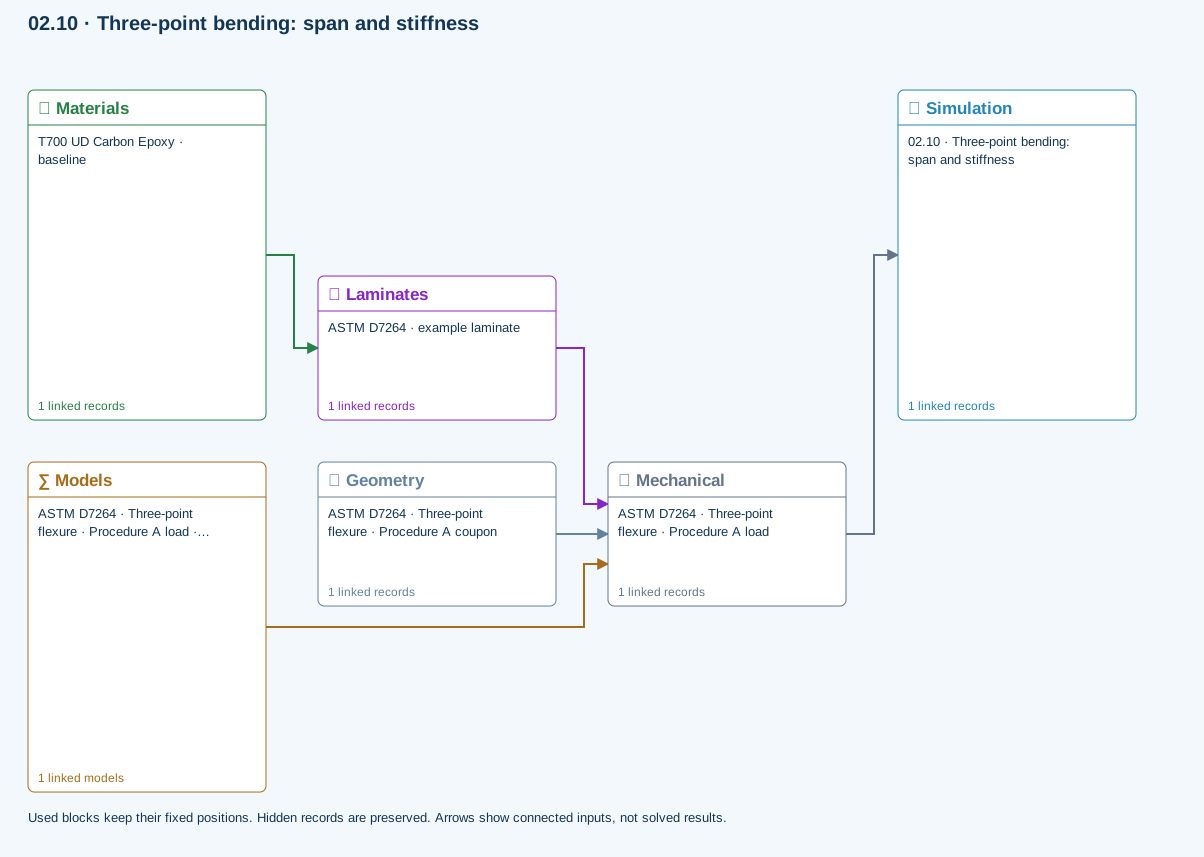
Only blocks on the exercise path are shown. This changes the view only, not the exercise records.
∑ Used models & submodels
Only models assigned to records used by this exercise are listed here. The full-layout option preserves the supplied starter records; no Workbench records are changed.
Euler–Bernoulli beam · Linear static · ASTM D7264 · Three-point flexure · Procedure A load
Beam bending uses effective laminate axial stiffness, the linked section geometry, support span and applied loading. Euler–Bernoulli deflection excludes transverse shear deformation, roller contact and indentation. Ply stress recovery for rectangular laminate coupons is separate from section-level beam stress recovery.
∑ Theory & assumptionsData travelling between blocks
Materials → Laminates
Stored ply stiffness, strength, density and expansion properties.
Mechanical → Simulation
SIMULATION selects this case and its analysis model; the case owns its applicable cycle and input references.
Laminates → Mechanical
Ply angles and thicknesses, stiffness, mass and ply properties.
Geometry → Mechanical
Part shape and dimensions, thickness or section definition, and model-specific geometric inputs. Each selected case consumes only the dimensions its model supports.
Models → Mechanical
Applied model assignment: Euler–Bernoulli beam · Linear static. Model parameters and formulation are used by Mechanical.
Inspect specimen width, laminate thickness, support span and central force.
Models: Euler–Bernoulli beam · ASTM D7264-based
Study scope and limitations
Procedure A teaching setup. Transverse shear deformation, roller contact and indentation are excluded.
Open the Workbench
Register and verify your CDS account, then sign in and choose SIMULATE to launch Workbench. Account registration is required, including for the 30-day demo. Your active license determines permitted modules and models.
Step-by-step instructions · 3 steps
- Confirm the correct account is signed in.
- Choose a starter exercise or open your saved CDS database. Save current work before replacing the workspace.
- Use CREATE for a guided starting design, DISCOVER for exploration, or SIMULATE for the standard workspace.
Understand the workspace
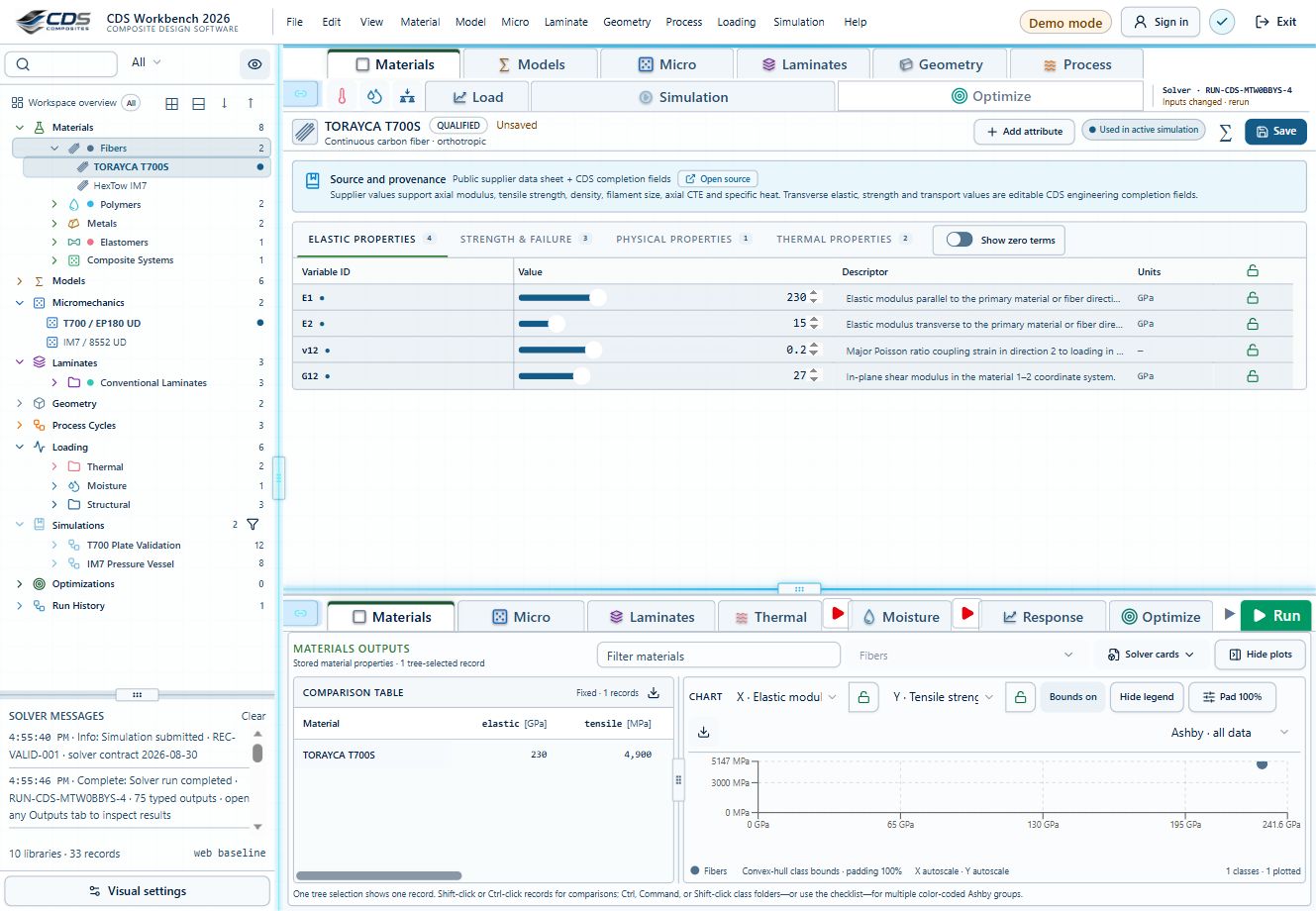
The compact project tree is on the left, the selected record editor occupies the main workspace, and the result summary remains visually separate. Single-click selects a record; use its chevron or double-click the row to open children.
Make your first edit
Duplicate a teaching record, unlock one property, enter a valid numeric value, confirm its units, and lock it again.
Step-by-step instructions · 4 steps
- Select the record. See screenshot
- Find the property by its name and description. See screenshot
- Unlock the row, edit the value, then lock it. See screenshot
- Save the record and keep a dependency-complete CDS database checkpoint.
Run and review a case
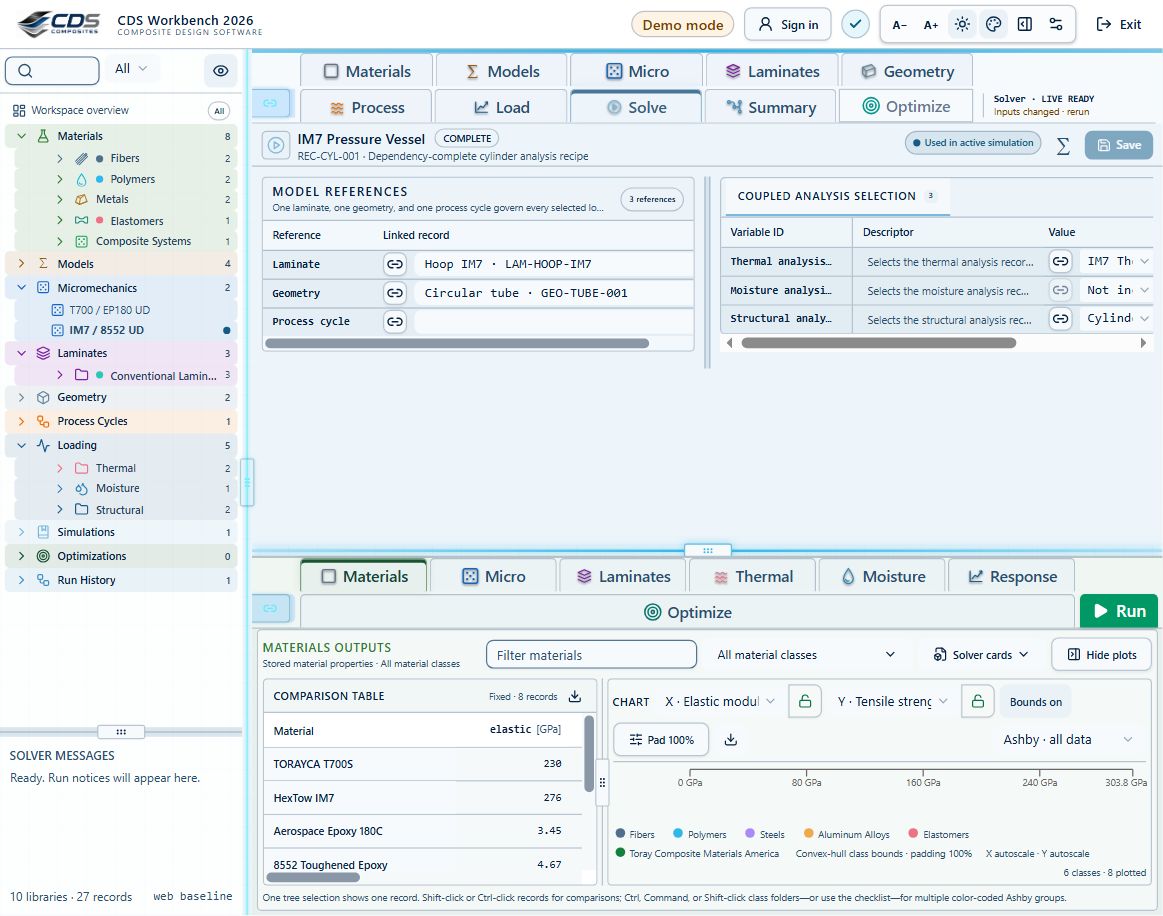
Select a simulation and inspect its connected inputs and model choices in the Simulation workflow. Eligible quick studies refresh after editing pauses; longer calculations require Run.
Step-by-step instructions · 4 steps
- Resolve missing setup, invalid inputs and incompatible model selections. See screenshot
- Check geometry, boundary conditions and loading in LiveLoad.
- Choose Run when required and wait for completion. See screenshot
- Review the relevant output and its freshness, units, assumptions and convergence.
Find the manuals and exercise databases
Open Your account → Your CDS library for the current overview PDF, User Guide, Theory Manual and complete exercise collection. Read the exercise instructions and two-layer workflow before opening its database.
Chapter review
Repeat the baseline before making a controlled change; an unexplained difference should be resolved before proceeding.
References and source sections
References are retained with the formulations they support. Software instructions describe implementation scope; a cited source does not establish independent validation of a CDS calculation.